

When using cards or direct debits, payment collection is fully automated with customer’s payment method charged by Hyperline without any manual operation from either party. However, receiving payments on time from your customers paying manually can be more challenging, often requiring you to remind them about due invoices and missing payments.Documentation Index
Fetch the complete documentation index at: https://docs.hyperline.co/llms.txt
Use this file to discover all available pages before exploring further.
Only invoices without a payment method assigned, configured to be paid via bank transfer, or with a payment method in error are concerned by payment reminders. For invoices paid with valid automated payment methods (Credit Card, Direct Debit), “payment errored” emails will be sent.
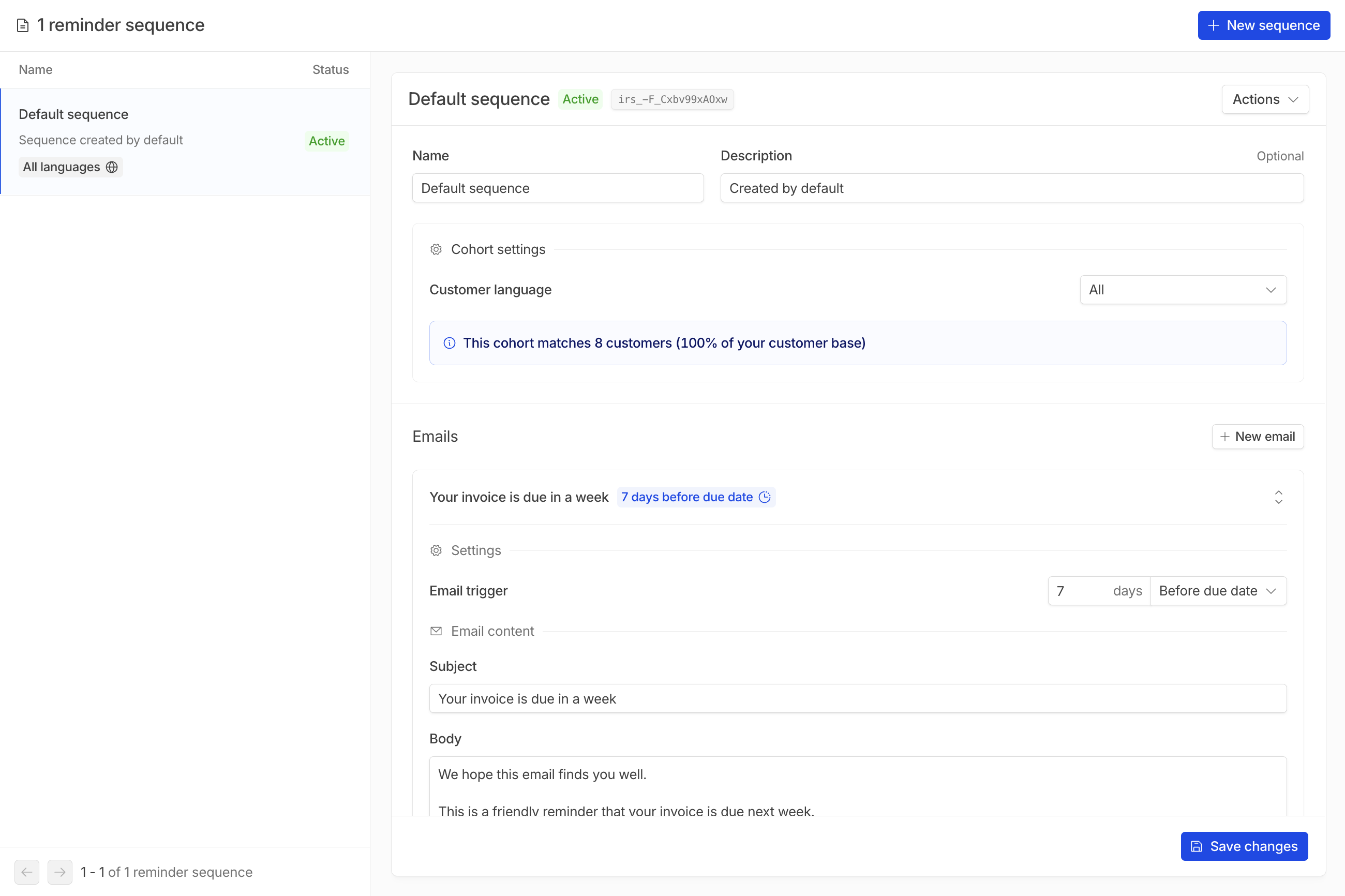
Configuring a reminder sequence
To create a new reminder sequence, head to Invoicing > Reminders.By default, Hyperline creates a default sequence (in English) for all new accounts.
Audience
When creating a sequence, you must configure an audience, which defines which customers the reminder sequence applies to. Only invoices paid by bank transfer or without any payment method set are eligible. There are two ways to define the audience for a reminder sequence:Using a segment
You can select an existing customer segment as the audience for your reminder sequence. This is the recommended approach when you already have segments that match the cohorts you want to target — for example, “Enterprise customers in France” or “Customers paying by bank transfer in English”. Segments are evaluated continuously, so as customers enter or leave the segment, they are automatically included in or excluded from the reminder sequence.Custom filters
Alternatively, you can define a custom audience directly on the sequence using filters:- Language — filter by customer language to ensure reminders are sent in the appropriate language. If language isn’t a factor, select the
Alloption to include all customers regardless of their language preference. - Custom properties — filter by custom properties configured on your customers. This allows you to tailor audiences based on specific attributes, enabling more precise control over your invoice reminder sequences.
Customize the emails
When adding an email to your reminder sequence, you can configure the trigger based on a number of days before, on, or after the invoice due date. You can also configure the email subject and body with your own content.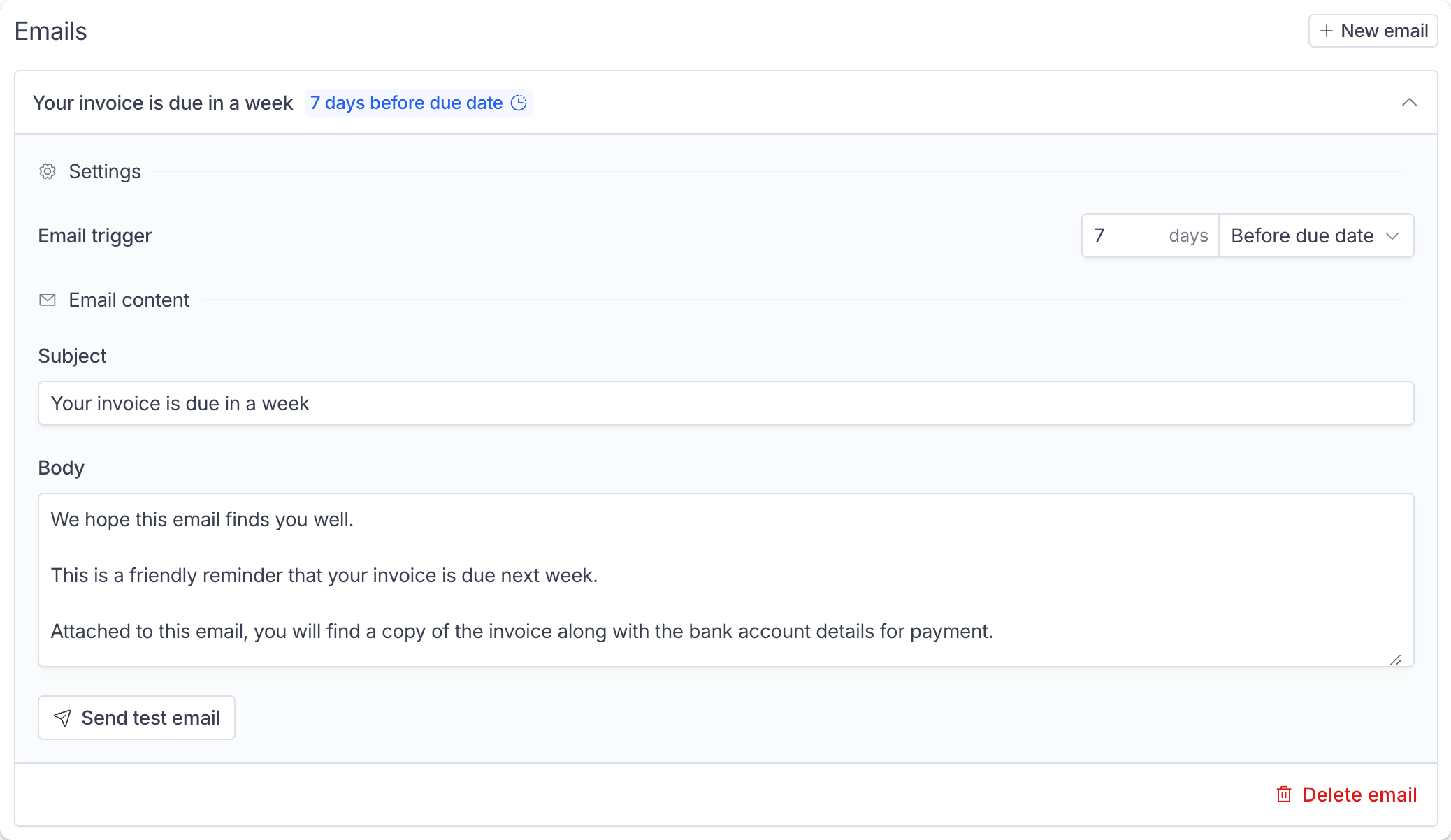
Opt-out a customer from reminders
To exclude a specific customer from reminder sequences, you can switch off the ‘Invoice email reminders’ setting on your customer: go to the Customer > Click on the customer > ‘Edit’ on the top right of the page > Switch off the ‘Invoice email reminders’.Track emails sent
When an email reminder is sent for a specific invoice, a corresponding history log is added to the invoice History. As for other emails, we provide delivery, open, and read status for complete traceability.